
Add This Code function.php file of your theme
Here’s a quick snippet you can simply copy/paste to show a “+” and a “-” on each side of the quantity number input on the WooCommerce products.
Note: you will probably also require some custom CSS, as your theme might give a “float” display to the quantity buttons (by default HTML buttons take inline-block).
<style>
.quantity {
    float: none;
    margin: 0;
    display: inline-block;
}
</style>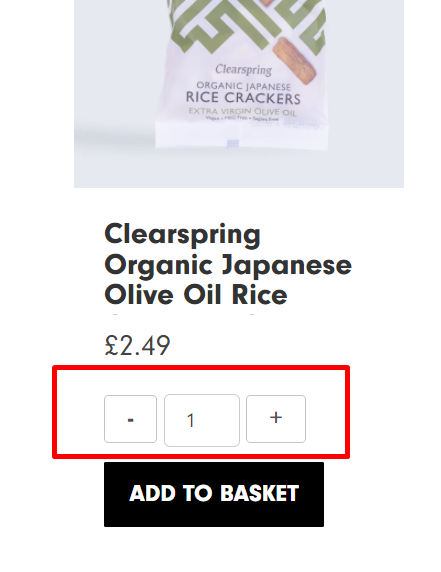
<?php
// 1. Show plus minus buttons
add_action('woocommerce_after_quantity_input_field', 'ewpexpert_display_quantity_plus');
add_action('woocommerce_before_quantity_input_field', 'ewpexpert_display_quantity_minus');

function ewpexpert_display_quantity_plus() {
    echo '<button type="button" class="plus">+</button>';
}
function ewpexpert_display_quantity_minus() {
    echo '<button type="button" class="minus">-</button>';
}

// 2. Trigger update quantity script
add_action('wp_footer', 'ewpexpert_add_cart_quantity_plus_minus');

function ewpexpert_add_cart_quantity_plus_minus() {
    ? >
    <script type = "text/javascript" >
        jQuery(document).ready(function() {
            jQuery(document).on('click', 'button.plus, button.minus', function() {
                var qty = jQuery(this).parent('.quantity').find('.qty');
                var val = parseFloat(qty.val());
                var max = parseFloat(qty.attr('max'));
                var min = parseFloat(qty.attr('min'));
                var step = parseFloat(qty.attr('step'));
                if (jQuery(this).is('.plus')) {
                    if (max && (max <= val)) {
                        qty.val(max).change();
                    } else {
                        qty.val(val + step).change();
                    }
                } else {
                    if (min && (min >= val)) {
                        qty.val(min).change();
                    } else if (val > 1) {
                        qty.val(val - step).change();
                    }
                }

                qty.trigger("click");
            });
        }); <script type = "text/javascript" >
        <
        ? php
}


